Posture, height and the quiet fixes
Small adjustments. Long days. The body notices first.
Start with screen height
Most desk discomfort starts with the display. A screen that sits too low pulls the head forward and rounds the shoulders. General workstation guidance, from bodies such as the UK Health and Safety Executive and OSHA in the US, and from standards like ISO 9241, points the same way: the top of the screen at or just below eye level, roughly an arm's length away, directly in front of you.
You do not need special equipment to test this. Sit back in your chair, relax your shoulders and look straight ahead. If you look down at the middle of the screen, the display is too low. Every accessory in this zone exists to fix that, or to let you work comfortably with the screen where it should be.
The laptop stand, and its partner
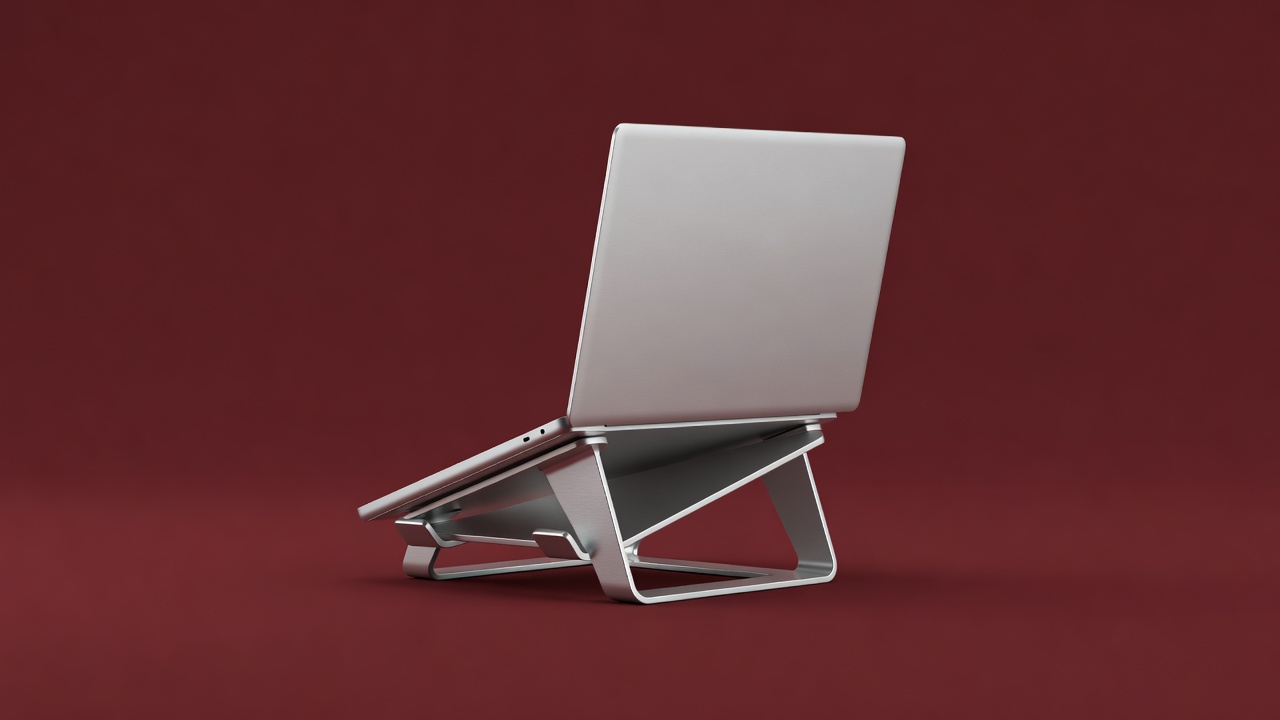
A laptop's screen and keyboard are joined, so you cannot position both correctly at once. A stand raises the screen. Then a separate keyboard and mouse bring your hands back down to a natural height. Together they turn a laptop into a proper workstation.
The Rain Design mStand, Roost and Twelve South Curve are well-known aluminium options. Fold-flat travel stands suit students who carry their setup. Look for a stand that is stable at full height, with rubber contacts that will not mark the laptop and an open design that lets the machine breathe. Pair it with a compact keyboard such as the Logitech MX Keys, and consider a vertical mouse like the Logitech MX Vertical if your wrist tires.
Risers and monitor arms
For a desktop monitor, there are two routes. A riser is the simple one. A wood or metal platform lifts the display by a few centimetres and creates a shelf for the keyboard to slide under. It costs little and is easy to move.
A monitor arm, such as the Ergotron LX or the Humanscale M2.1, clamps to the desk edge and gives full control of height, depth and tilt. It frees the surface entirely. Check your monitor has a VESA mount pattern, and that the arm's weight range covers your display. Arms suit shared desks and tight spaces. Risers suit rented rooms where clamping and drilling are not welcome.
Feet, wrists and standing
Footrest
If your feet do not rest flat on the floor, a footrest takes pressure off the thighs and steadies the pelvis. It matters most on fixed-height desks and for shorter users.
Wrist rest
Use it as a resting place during pauses, not as a support while typing. Keep your wrists straight and let your forearms do the moving.
Sit-stand
Full sit-stand desks from makers such as Fully, Uplift and Flexispot cost the most, while tabletop converters sit on an existing desk for less. Standing all day is no better than sitting all day. The benefit comes from changing position through the day, so alternate and keep standing sessions short at first.
Build the habit
No accessory replaces movement. The 20-20-20 habit is a popular prompt: every twenty minutes, look at something twenty feet away for twenty seconds. Stand up each hour, roll your shoulders, and walk to refill a glass of water. A small timer on the desk is a useful reminder.
This guide is general information, not medical advice. If you have persistent pain, numbness or tingling, speak to a doctor or a qualified physiotherapist, and ask your employer or school about a workstation assessment.